
Downloading XP/VS Terminal Server for Windows

Version 1.0.980 • 33.80MB • Changelog

SHA-256 checksum: a09398a97e9c4bb7abc938ade205137cab765ba4f8be94963867960b2aafe47f


Thanks. Your download has started.

If not, click here.
Step 1

Installation

After successful installation of XP/VS Server you have to reboot your PC. The installation package includes a 14-day trial license to evaluate if our software suits your requirements.

You might also want to activate your license or purchase a license.

Step 2

Enable remote access

To enable remote access go to "Computer" -> right-click "Properties" -> Remote settings and add those users to remote user group who are allowed to login remotely.

How do I enable remote access on Windows 11, Server 2025 or on previous versions ?

This step is not required on Windows Home Edtions.

Step 3

Secure XP/VS Server

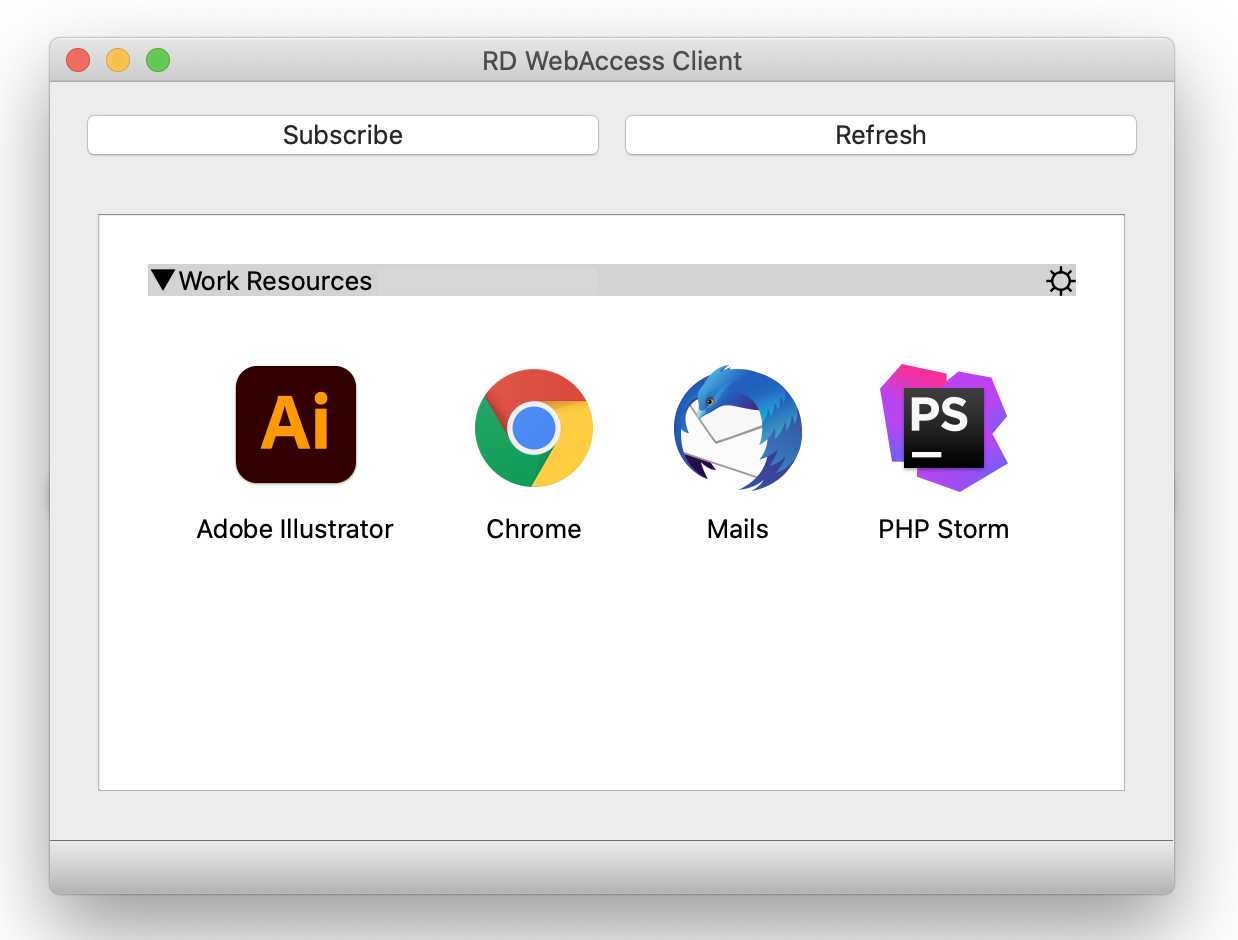
Enhance your XP/VS instance with Thincast RD WebServices:

  • Automatic certificate handling
  • Browser-based HTML5 client
  • Secure HTTPS tunneling
  • Two-factor authenticaton
Learn more

Pro Tip: Optional partner recommendation

Step 4

Client-side

Once you have completed the previous steps, you can connect to your computer using any modern Remote Desktop app (recommended).

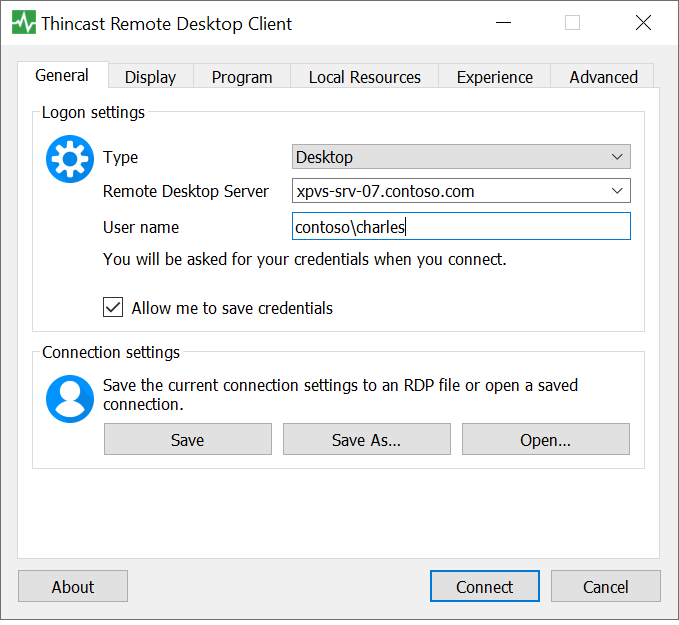
Just type in your IP address or hostname of XP/VS Server, your username and click "Connect".
Thinstuff recommends

Connect to XP/VS Terminal Server with Thincast Remote Desktop Client for Linux, macOS and Windows.

A free multi-platform Remote Desktop Client, developed by our partner company and fully compatible with Thinstuff software.

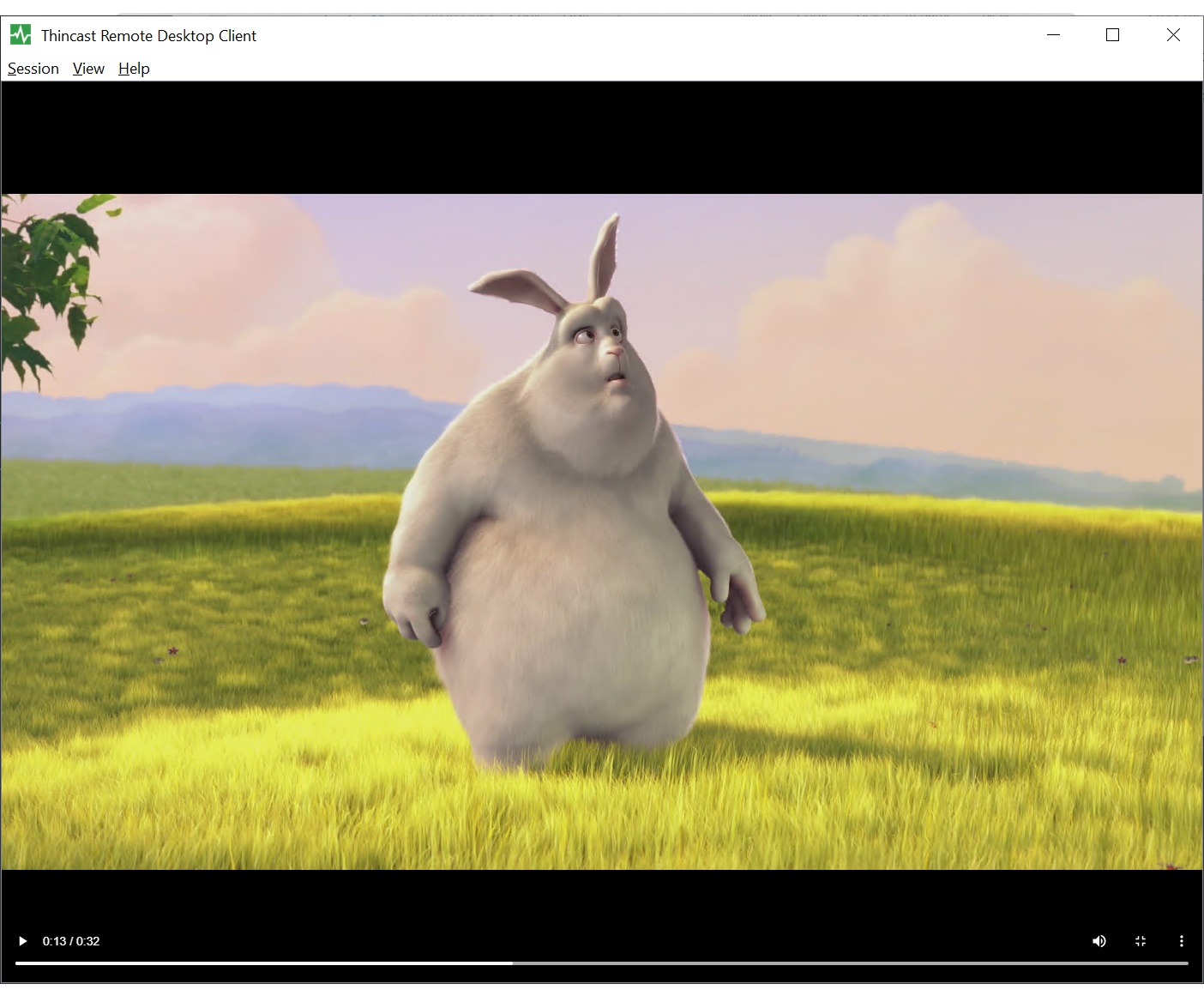
It offers features like built-in support for redirecting webcams, remote apps, regular security updates and hardware-accelerated video decoding to extend the battery life of your device, ideal when working on the go.

Go to thincast.com

Thinstuff recommends

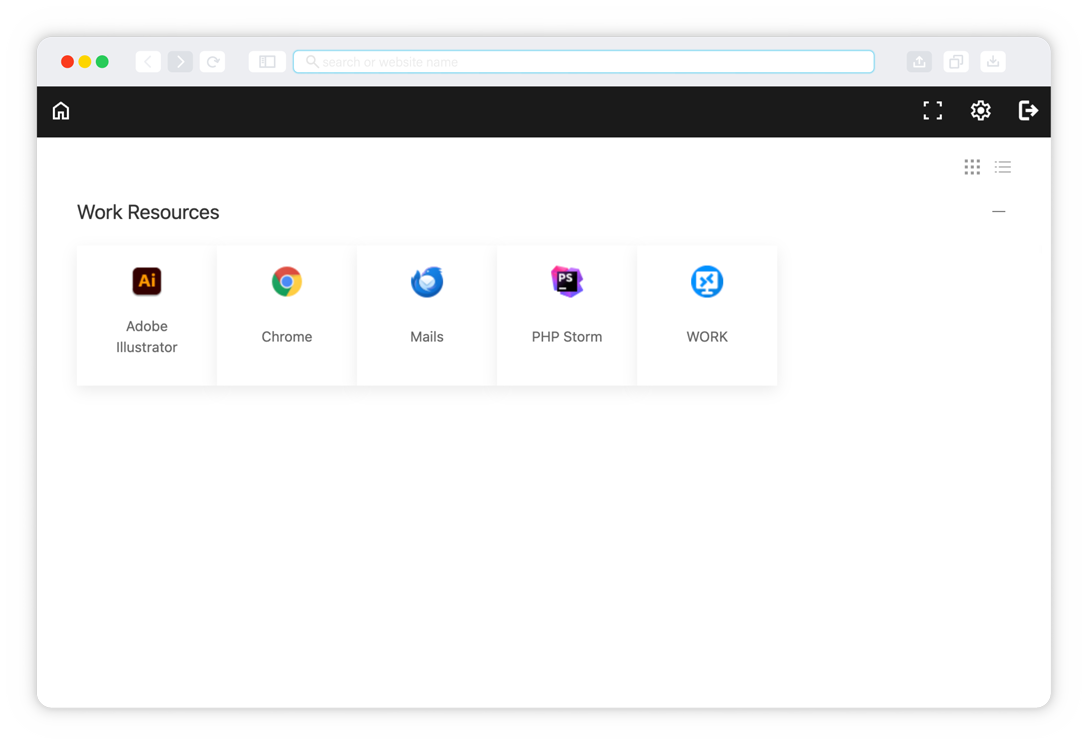
Easily work with apps and desktops from any HTML5 web browser with Thincast RD Web Client, giving you instant access to your remote resources without installation of any app on client side.

Manage remote resources for your team and restrict access for specific users and groups through an simple interface. Developed by our partner company and fully compatible with Thinstuff software.

Go to thincast.com

Remote Desktop Software

Official partners

© 2005 - 2026 Thinstuff s.r.o.